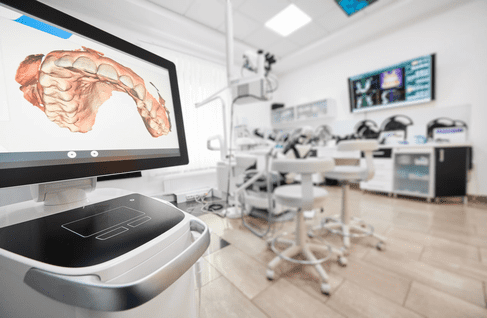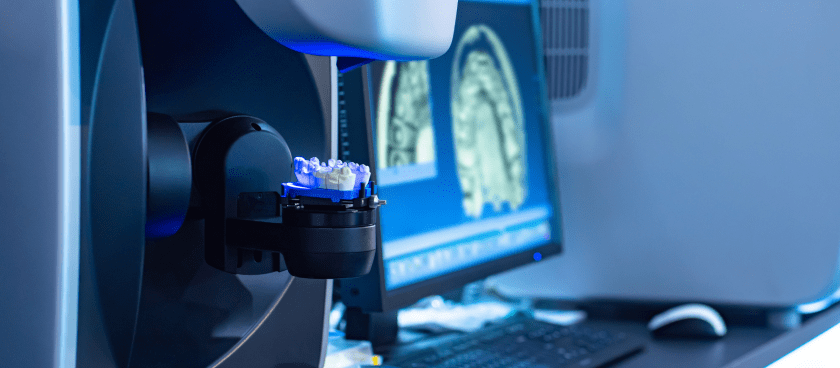







Primescan Scanner
Efficiently link your Sirona Cerec Connect intraoral scanner by following these simple steps. This streamlined process ensures that you can quickly start submitting your dental cases to us, enhancing your practice’s operational efficiency and patient satisfaction. Here’s how to establish the connection.
For instructions for linking other dental scanners, read our post that covers all popular scanners.
Steps to Connect a Lab Your Primescan Scanner:
Step 1: Register as a dentist using the “Dentist Registration” button on the CEREC Connect website.
Step 2: Log in with your credentials on the Sirona Connect Website.
Step 3: Select “My Accounts” from the drop-down menu, then choose “My Favourite Laboratories.”
Step 4: In the “My Favourite Laboratories” section, click “Search Lab.”
Step 5: Input our Zip code (6102) and select “Start Search.”
Step 6: Search for Oceanic Dental Lab in the list of laboratories and click the plus (+) icon next to our name, then wait for it to load.
Step 7: You are now prepared to begin transmitting your cases to us.
Wish to Trial Our Lab?
If you are considering Oceanic Dental Lab for your dental restoration needs but wish to evaluate our services first, we welcome you to trial our lab.
Simply connect your Primescan scanner using the steps provided above. We’re confident that we’ll meet and exceed your expectations.